Question
Answer
Vantage Coordinator User Guide
Purpose of this Coordinator user guide is to give you a thorough overview and how-to instructions of the core functionalities of the Vantage coordinator role. If you have any question or issues while working in the coordinator role, please do not hesitate to reach out to Sage’s LMS Support team for assistance (LMSsupport@sagepub.com).
Coordinator Dashboard Overview
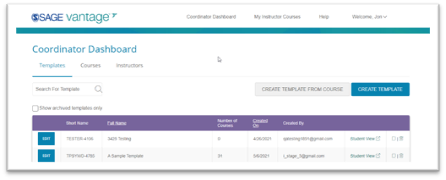
From the Coordinator Dashboard, you can access the Templates, Courses, and Instructors tabs. You will notice the dashboard defaults to the Templates tab.
Here is a brief overview of what you can do from each tab:
1. Templates: From the Templates tab, you can create and edit Vantage course templates, as well as turn Vantage courses into templates that can then be used to create multiple courses. You can also view all templates created in their departments.
2. Courses: From the Courses tab, you can create multiple copies of a template (up to 25 at time), assign and un-assign courses to instructors in your approved departments for your institution, and view basic course information.
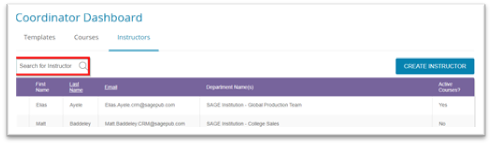
3. Instructors: From the Instructors tab, you can search for existing approved Vantage instructors in your assigned departments at your institution and create new Vantage instructor accounts for the departments you manage.
Before you can start creating and assigning your Vantage courses to instructor, you need to have a template to create those courses from. Once you have created a template, then you can create courses from that template and assign them to instructors. Adding instructors can be done during course copy/creation or after, as you have the option to leave courses unassigned.
Templates Tab
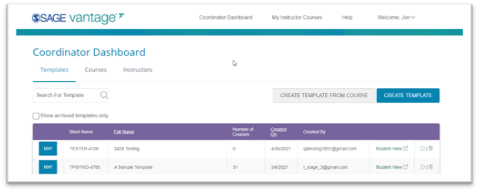
From the Templates tab, you can create and edit Vantage course templates, as well as turn Vantage courses into templates that can then be used to create multiple courses. You can also view all templates created in their departments.
How to Create a Template:
You have two options for creating a template. First, is to create a template from scratch by clicking “Create Template” (instruction below). Second, is to turn an existing Vantage course into a template (instructions below). Remember, you can always edit your templates after creating them and before creating courses from them.
How to Create a New Template:
From the Templates tab:
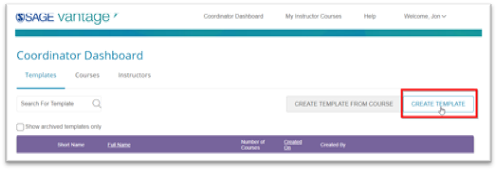
- Click the "Create Template" button
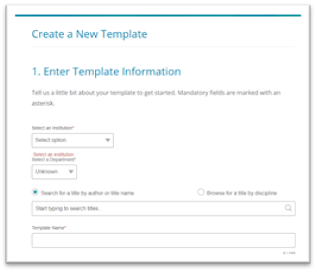
- Fill out the "Template Information" page
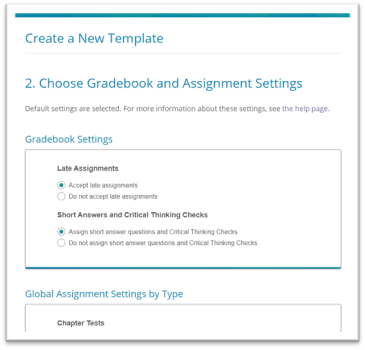
- Fill out the "Gradebook & Assignment Settings" page
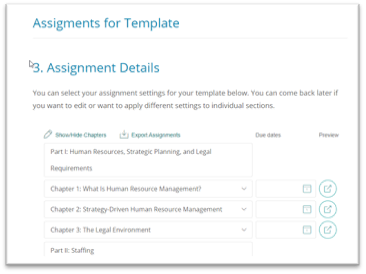
- Fill out the "Assignment Details" page as desired
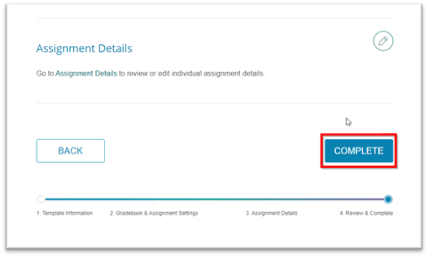
- Finish Template Creation by reviewing the settings then Click "Complete"
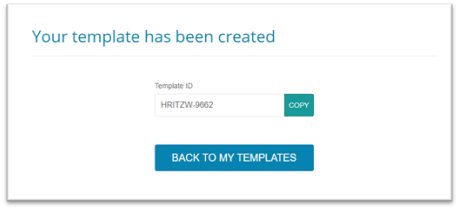
How to Edit a template:
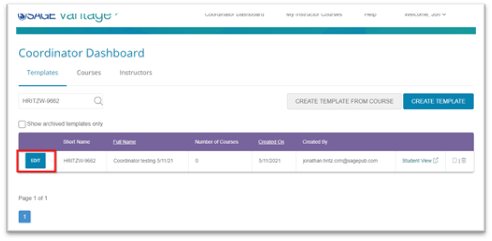
You can edit your templates at any time from the Templates tab. You can edit every aspect of the Template by clicking "Edit" by the desired Template. This will take you to the global settings screen for the template where you can edit at the following three levels:
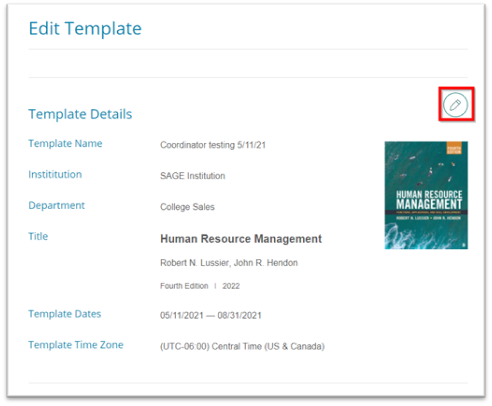
- Template Details: Here you can edit the Templates name, Section Name, Start and End Dates, Time Zone, and Description.
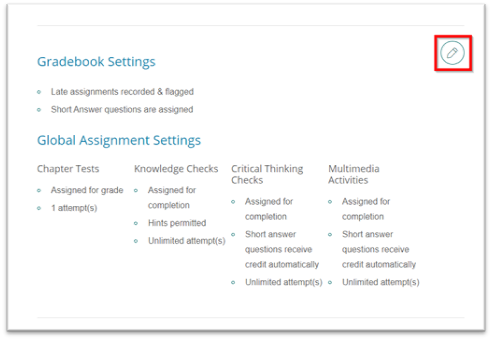
- Gradebook Settings: Clicking the edit icon will take you to the global Gradebook Settings where you can change the overall setting for Chapter Test, Knowledge Checks, Critical Thinking Checks, and Multimedia Activities.
- Assignment Details: Clicking the edit icon will take you to the Assignments page where you can edit due dates and assignments
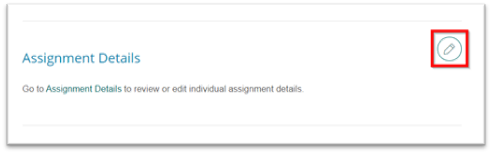
- Click "Save Changes" when finished
How to turn a course into a template:
You have the option to turn Vantage courses from instructors within your approved departments into Templates. All that is required is the Course ID of the course you wish to create a Template from. Once the course has been converted into a template, you can create multiple copies and assign them.
Steps for Creating Template from a Course:
- Click on "Create Template from Course" button
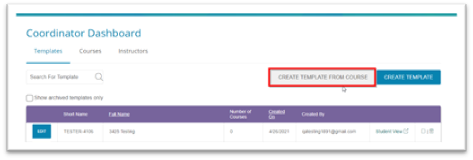
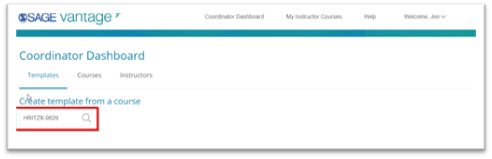
- In the Search box, enter the Course ID of the course you want to turn into a template and click the magnifying glass icon
- If the course is found, click on "Yes, Create Template from Course" button
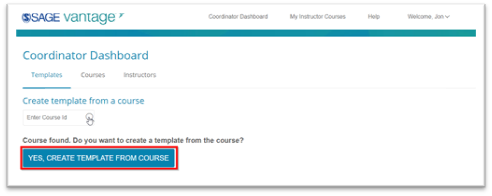
- Make any edits to the global settings
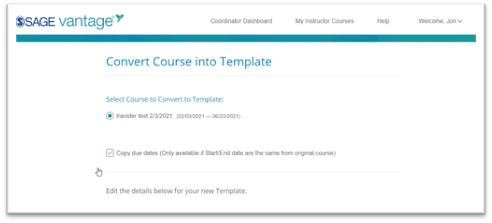
- Save Changes
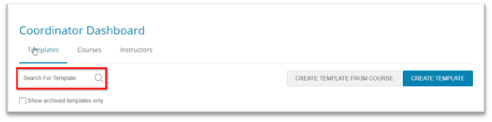
How to Search templates
You can search for existing Templates by either the Course ID, Short Name, or Full Name. Simply type in the "Search for Template" box and click the magnifying glass icon.
Courses Tab
From the Courses tab, you can create multiple copies of a template (up to 25 at time), assign and un-assign courses to instructors in your approved departments at their institution, and view basic course information.
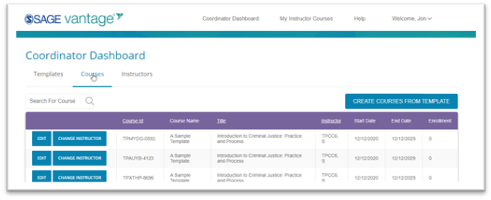
How to "Create Courses from a Template":
- Click "Create Courses from Template"
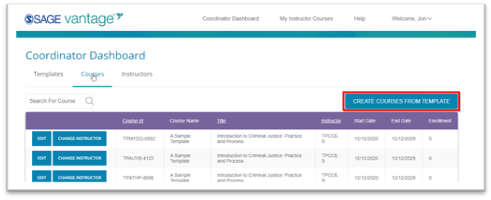
- From the Template Selection screen
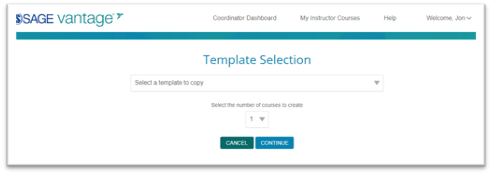
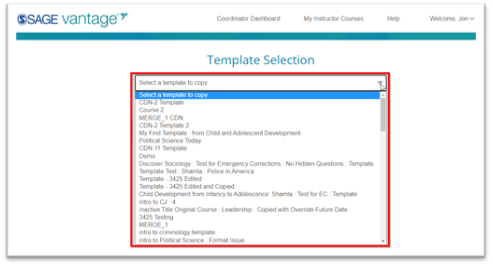
- Select the template to copy from dropdown menu
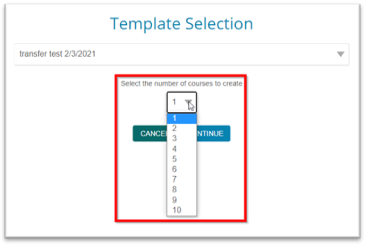
- Select the number of copies to create (up to 25 at a time)
- Click "Continue"
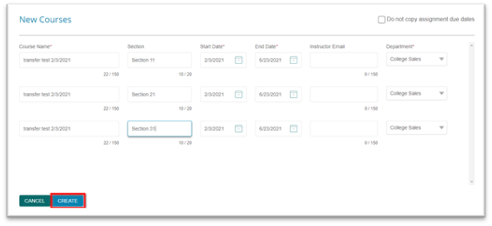
- On the New Courses screen, you can edit the Course Name, Section, Start/End Date, and assign a course to an instructor. (note: Courses cannot have identical names. Either the Name, Section name, and/or Start/End Date must be unique for all courses copied from this template)
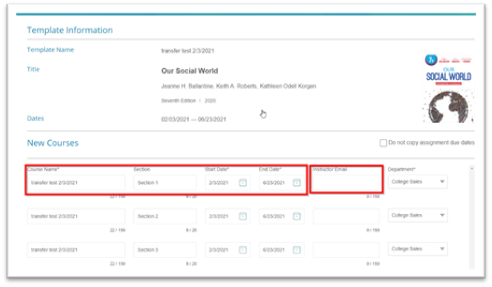
- Click "Create"
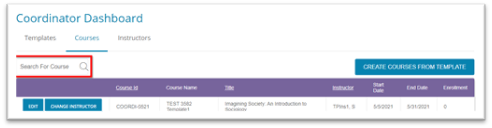
How to "Search for a Course":
From the Courses Tab, you can search for courses by either the Course ID or the Course Name.
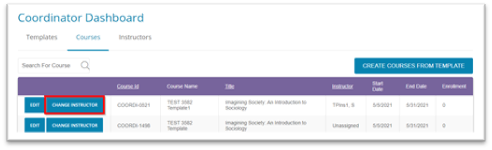
How-to "Change an Instructor"
You can change or assign a course to an instructor in your approved department(s) if that instructor already has a Vantage account (which can be checked on the Instructor Tab). See below for creating new instructor accounts.
From the Courses Tab:
- Click on "Change Instructor" from the menu
- Enter the email address of the instructor you want to assign that course to
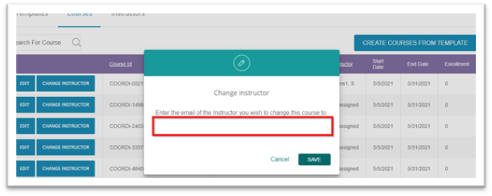
- Click "Save"
Instructor Tab
From the Instructors tab, you can search for existing approved Vantage instructors in your assigned departments at your institution and create new Vantage instructor accounts for the departments you manage.
General Guidelines & Reminders:
- You can create new Vantage instructors for the departments that are associated with your account
- If you cannot find an existing instructor when you search on them either:
- They do not have a Vantage account and need to have one created,
- The instructor you are searching for is associated with another department. In which case, reach out to our LMS Support team (LMSsupport@sagepub.com) to fix the issue
- Or, the instructor has never logged into Vantage but has an account. Have the instructor reset their password and log into Vantage. Then you can assign the a course to them
If you have any issues finding or creating instructor accounts, reach out to your primary Sage contact for assistance.
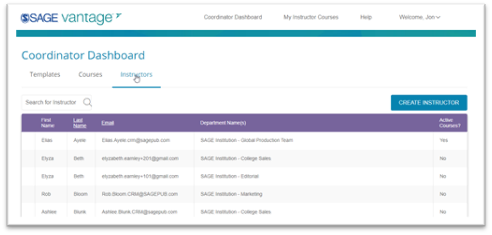
How to "Create Instructor":
From the Instructor Tab:
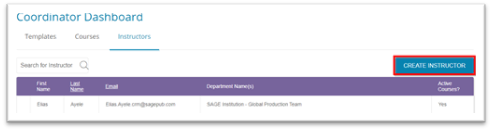
- Click "Create Instructor"
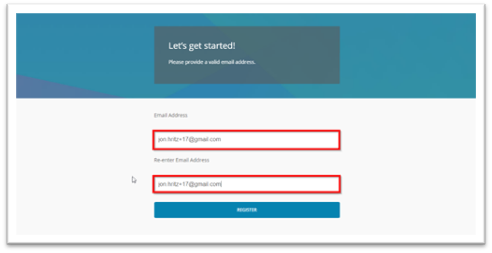
- Enter the instructors email address and click "Register"
- Complete the form for: Title, First Name, Last Name, Department
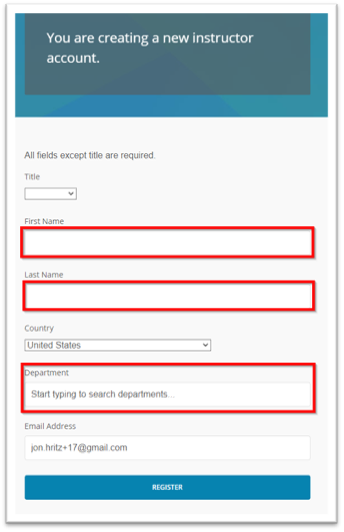
- Click "Register"
How to "Search for Instructor":
In the "Search for Instructor" box, you can search by First Name, Last Name, or Email to confirm if an instructor exists for your department.